You’ve got a terminal running something, a browser window you’ll need later, and something else you actually want to focus on now. Closing the first two would be inconvenient. Leaving them in the way isn’t great either.
Window Shelf is another Omarchy plugin I built. It gives those windows somewhere to go until you need them again. Their apps keep running while they’re tucked away.
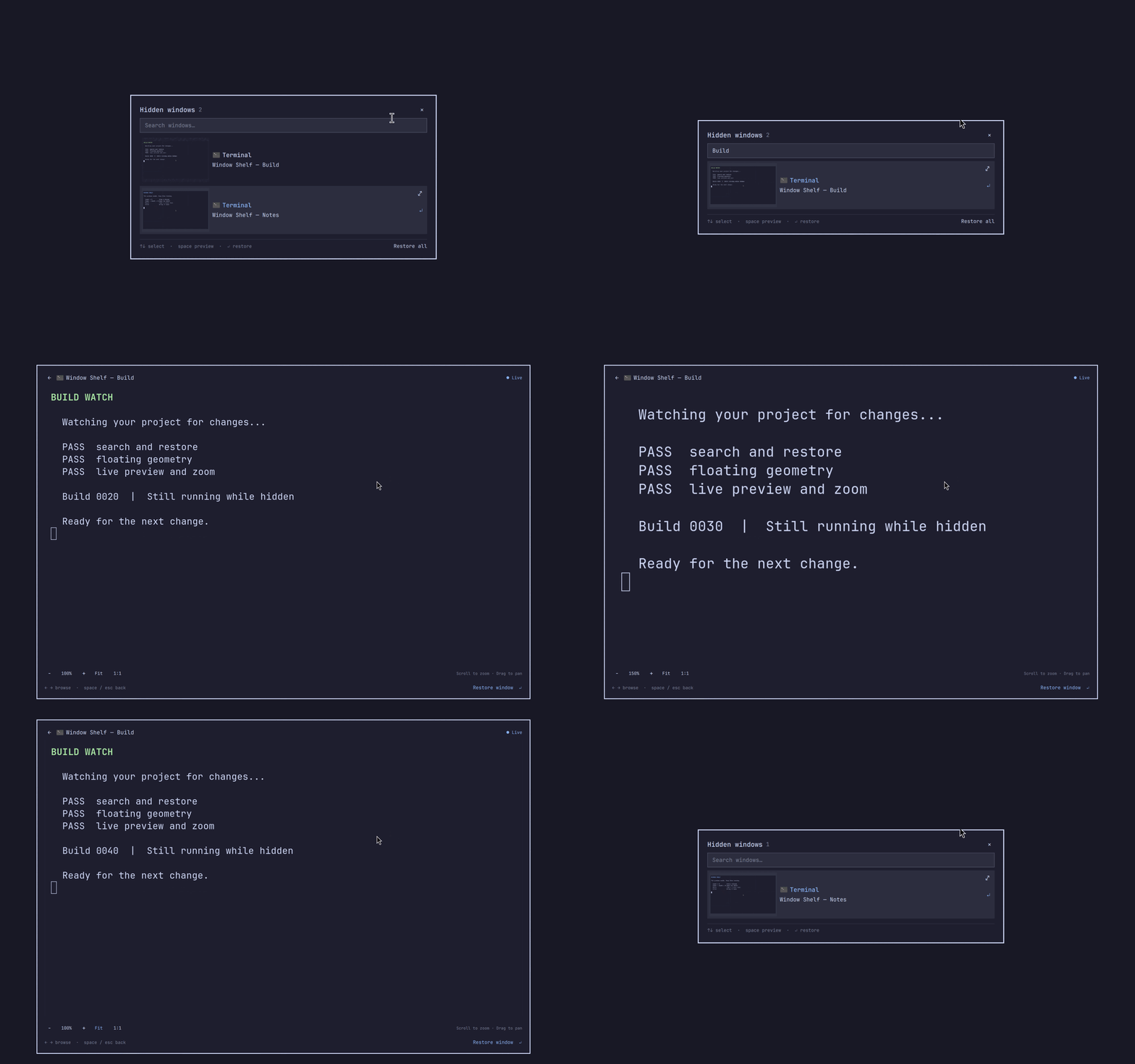
A synthetic demo of the picker and preview controls.
Putting a window on the shelf
Press Super+M on the window you want to hide. When you want it back, press Super+Shift+M to open the picker, type part of the app name or window title, and hit Enter on the result.
It comes back onto the workspace you’re on, ready to use. There’s also a Restore all button for bringing everything back together.
Underneath, this uses a named Hyprland special workspace. Hiding a window doesn’t suspend its process, so audio can keep playing and commands can keep running. It also doesn’t save your apps for a reboot; the shelf belongs to the current desktop session.
Which window was it, again?
Search gets you a long way, but similar window titles can still leave you guessing. That’s where Quick Look comes in.
Select a window and press Space to take a look without bringing it back. The preview uses a live capture when available, with a saved snapshot as the fallback. You can zoom in, drag around a larger window, or browse the other windows you’ve hidden.
A small keyboard detail: Space still types a space while you’re searching. Use Ctrl+Space there, or press an arrow key to select a result before pressing Space.
You can look at the preview, but interacting with the app means restoring it with Enter. And a live preview can only show what the app is updating; some apps pause their own updates while hidden.
Trying it on your desktop
This is still a v0.1 preview. You’ll need Omarchy’s Lua/Quickshell desktop with Hyprland 0.56.x, Quickshell 0.3.x, and Python 3.10 or newer.
There’s a little more setup here because the plugin needs a helper and keyboard bindings. Clone it somewhere you’ll keep it, outside ~/.config/omarchy/plugins/, then run:
| |
Start with --check; it checks compatibility and conflicts without changing anything. The next command installs the helper, plugin, and bindings, with backups of the configuration it changes.
One shortcut to be aware of: Music moves to Super+Ctrl+Shift+M, since the picker takes Super+Shift+M. Installing through omarchy plugin add alone won’t set all of this up.
Keep that checkout around. You’ll use python3 install.py --uninstall from the same directory if you want to remove it. That brings hidden windows back and cleans up the helper and shortcuts together.
The README covers the rest, including recovery commands if you need to get a window back from the terminal.
As of September 14, 2026, this one’s marketplace submission is still open. It passed compatibility validation and is waiting for a maintainer to review the installer. You can already try it from GitHub.
If a window comes back in a strange place, or a preview looks wrong on your monitor, let me know. Include the app and your display scaling so I have somewhere to start.